The Workbench: VS Code's UI Shell — Where Everything Comes Together
The Workbench: How VS Code's UI Actually Works
Series: This is Article 4 in our VS Code Internals series. Read Article 3: Advanced IPC first if you haven't.
Open VS Code. Look at the screen. You see an Activity Bar on the left, a Sidebar, an Editor area with tabs, maybe a Panel at the bottom with a Terminal. Simple, right?
Now consider: thousands of extensions add views, commands, menus, and panels to this UI. VS Code loads them all at startup without freezing. Any panel can be dragged to any position. Split the editor in any direction. Open multiple windows. And somehow, it all stays organized.
How?
The answer is the Workbench — VS Code's master UI orchestrator. It's the largest and most complex subsystem in the codebase, and understanding it is the key to building anything on top of VS Code.
This is the article where everything from Articles 1-3 comes together. Process architecture, extension isolation, IPC channels — they all serve the Workbench.
Here's where the Workbench sits in VS Code's architecture — it's the layer that ties everything together:
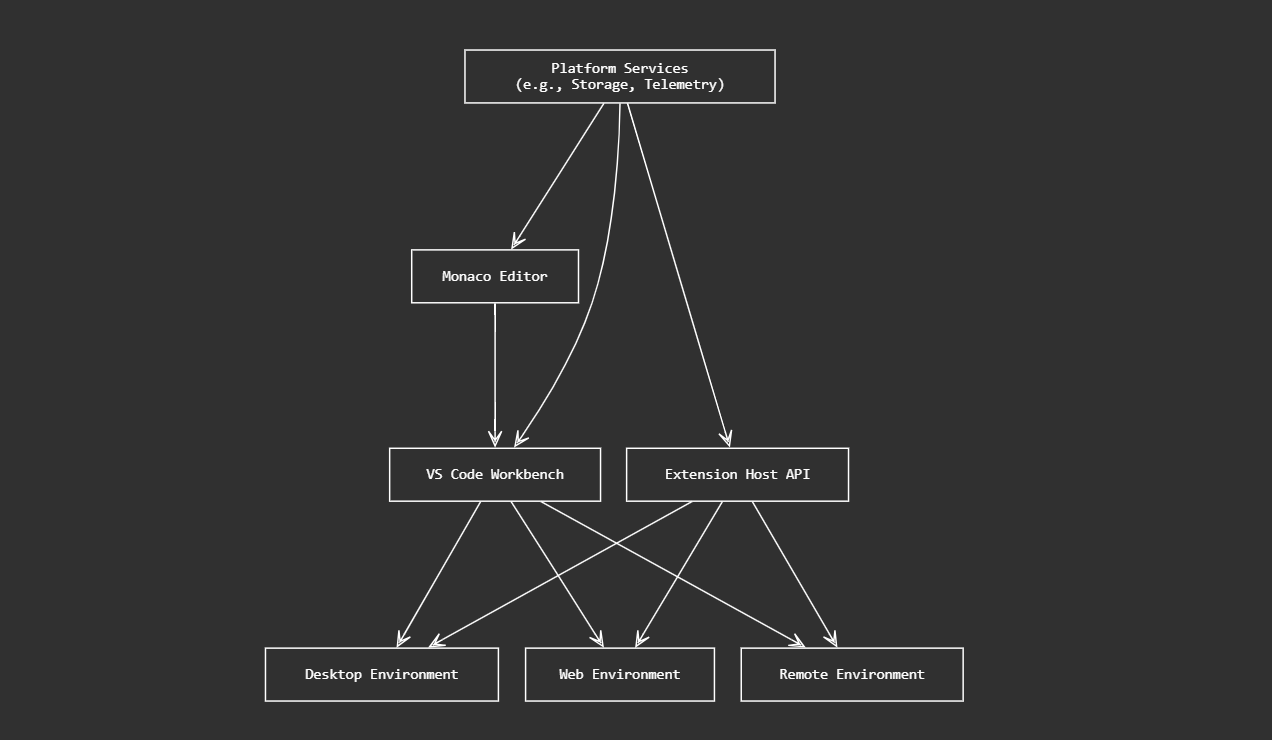
Platform Services (DI, Storage, Configuration) feed into the Monaco Editor and the Workbench. The Workbench combines them with the Extension Host API, and the whole thing runs across Desktop, Web, and Remote environments. Today we're zooming into that Workbench layer.
The Four-Layer Architecture
Before we dive into the Workbench specifically, let's see where it sits. VS Code's codebase is organized into four strict layers, each only allowed to depend on the layers below it:
  +-----------------------------------------------------------+
  |  Layer 4: WORKBENCH  (src/vs/workbench/)                  |
  |    Application UI, Parts, Views, Contributions            |
  +-----------------------------------------------------------+
  |  Layer 3: EDITOR  (src/vs/editor/)                        |
  |    Monaco Editor — text buffer, tokenization, IntelliSense|
  +-----------------------------------------------------------+
  |  Layer 2: PLATFORM  (src/vs/platform/)                    |
  |    Core services — DI, Configuration, Storage, Files, Log |
  +-----------------------------------------------------------+
  |  Layer 1: BASE  (src/vs/base/)                            |
  |    Utilities — events, disposables, data structures, DOM  |
  +-----------------------------------------------------------+
The rule is strict: each layer can only import from layers below it, never above. VS Code enforces this with npm run valid-layers-check — if you accidentally import a Workbench module from the Platform layer, the build fails. This discipline is what keeps a 3M+ line codebase maintainable.
The Workbench (Layer 4) is the highest layer — it can use everything from Platform, Editor, and Base. That's why it's the integration point for the entire application.
The Department Store Analogy
Think of the Workbench as a department store.
  +------------------------------------------------------------+
  |                   THE DEPARTMENT STORE                     |
  |                                                            |
  |  [BUILDING LAYOUT] ....... The Workbench                   |
  |    - Manages floor plan (which section goes where)         |
  |    - Controls lighting, HVAC, security (global services)   |
  |    - Opens/closes sections based on time of day            |
  |                                                            |
  |  [DEPARTMENTS] ........... Parts                           |
  |    - Electronics (Editor Area)                             |
  |    - Directory Board (Activity Bar)                        |
  |    - Customer Service (Status Bar)                         |
  |    - Each department manages its own shelves               |
  |                                                            |
  |  [SHELVES] ............... Views                           |
  |    - Individual product displays within a department       |
  |    - Any brand can rent a shelf (extensions register views)|
  |    - Shelves can be rearranged without rebuilding          |
  |                                                            |
  |  [STAFF] ................. Services                        |
  |    - Cashiers, stockers, security guards                   |
  |    - Hired once, available everywhere (singletons)         |
  |    - Each staffer has a name tag (service identifier)      |
  |    - You don't find them — they're assigned to you (DI)    |
  |                                                            |
  +------------------------------------------------------------+
The store doesn't care what brands fill the shelves. It provides the infrastructure — layout, utilities, staffing — and lets everyone else plug in.
The Nine Parts
The Workbench is divided into nine distinct Parts. Each Part is a self-contained UI region with its own lifecycle:
  +-----------------------------------------------------------+
  |                      TITLEBAR                             |
  +--------+-----------------------------------+-------+------+
  |        |                                   |       |      |
  | ACTIV  |          EDITOR AREA              | AUX   | CHAT |
  | ITY    |   (tabs, split views, editors)    | BAR   | BAR  |
  | BAR    |                                   |       |      |
  |        +-----------------------------------+       |      |
  |        |          PANEL (optional)         |       |      |
  |        |   (Terminal, Output, Problems)    |       |      |
  +--------+-----------------------------------+-------+------+
  |                      STATUSBAR                            |
  +-----------------------------------------------------------+
Here they are in code (src/vs/workbench/services/layout/browser/layoutService.ts):
export const enum Parts {
    TITLEBAR_PART    = 'workbench.parts.titlebar',
    BANNER_PART      = 'workbench.parts.banner',
    ACTIVITYBAR_PART = 'workbench.parts.activitybar',
    SIDEBAR_PART     = 'workbench.parts.sidebar',
    PANEL_PART       = 'workbench.parts.panel',
    AUXILIARYBAR_PART = 'workbench.parts.auxiliarybar',
    CHATBAR_PART     = 'workbench.parts.chatbar',
    EDITOR_PART      = 'workbench.parts.editor',
    STATUSBAR_PART   = 'workbench.parts.statusbar'
}
Every Part implements ISerializableView, which means it can participate in VS Code's grid-based layout system. Parts can be resized, hidden, moved — all without rebuilding the UI.
The layout is managed by IWorkbenchLayoutService, which provides methods like setPartHidden(), setPanelPosition(), and focusPart(). When you drag the Panel from bottom to right, that's the layout service rearranging the grid.
Dependency Injection: How Services Find Each Other
Before we go further into the UI, we need to understand the glue that holds VS Code together: Dependency Injection (DI).
In VS Code, services don't find each other. They're delivered to you automatically when you're created. You just declare what you need, and the system provides it. If you've used Spring (Java), Angular, or .NET Core, this is the same pattern — VS Code implements its own lightweight DI container that makes code testable, decoupled, and composable.
The createDecorator Pattern
Every service in VS Code starts with this one function:
import { createDecorator } from 'vs/platform/instantiation/common/instantiation';

export const IMyService = createDecorator<IMyService>('myService');

export interface IMyService {
    readonly _serviceBrand: undefined;
    doSomething(): Promise<void>;
}
You'll see _serviceBrand: undefined on every service interface. It looks strange but serves a purpose — it's a compile-time marker that makes each interface structurally unique in TypeScript. Without it, two services with identical method signatures could be accidentally swapped and TypeScript wouldn't catch it.
createDecorator returns something magical — a value that works as both a TypeScript decorator AND a service identifier. When you use it as @IMyService, it secretly stamps dependency metadata onto your constructor. When you use it as a value, it identifies which service to look up.
Using DI in Practice
Here's how you consume services — this is a real Roopik contribution:
class MyContribution extends Disposable {
    constructor(
        @IEditorService private readonly editorService: IEditorService,
        @IConfigurationService private readonly configService: IConfigurationService,
        @ICanvasService private readonly canvasService: ICanvasService,
        @ILoggerService loggerService: ILoggerService
    ) {
        super();
        // All four services are already available here.
        // You didn't create them. You didn't look them up.
        // The DI container read your constructor's metadata
        // and resolved every dependency automatically.
    }
}
Under the hood, IInstantiationService reads the @IServiceName decorators, resolves each service from its internal registry, and passes them as constructor arguments. If a service depends on other services, those are resolved first — recursively.
VS Code supports three ways to access services:
| Approach | When to Use | Example |
|---|---|---|
| Constructor injection | Long-lived classes (contributions, services) | constructor(@IMyService private myService: IMyService) |
| Accessor injection | Short-lived handlers (commands) | run(accessor: ServicesAccessor) { accessor.get(IMyService) } |
| Manual instantiation | Creating instances with DI | instantiationService.createInstance(MyClass) |
Constructor injection is the most common — you'll see it everywhere. Accessor injection appears in commands (we'll see it later). Manual instantiation is rare but useful when you need to create an object that itself has dependencies.
Registering Your Own Service
The complete pattern is four lines:
// 1. Create identifier + decorator
export const IMyService = createDecorator<IMyService>('myService');

// 2. Define interface
export interface IMyService { readonly _serviceBrand: undefined; }

// 3. Implement
class MyServiceImpl extends Disposable implements IMyService {
    declare readonly _serviceBrand: undefined;
    // ... your implementation
}

// 4. Register as singleton
registerSingleton(IMyService, MyServiceImpl, InstantiationType.Delayed);
InstantiationType controls when the service is created:
| Type | When Created | Use For |
|---|---|---|
Eager | As soon as any consumer depends on it | Services that must be ready immediately (menubar tracking, event buses) |
Delayed | When a consumer first actually uses it | Most services — lazy is better for startup time |
Default to Delayed unless you have a strong reason not to. Every Eager service adds to startup time. VS Code's fast launch is partly because hundreds of services exist but only a handful are created before the editor appears — the rest wait until something actually needs them.
In Roopik, we register 14+ services. Almost all use Delayed — except MenubarStateService which uses Eager because it must track menubar open/close state from the very start to pause the browser view when menus appear.
The Contribution System: How Features Register
VS Code doesn't hardcode features. Instead, it provides a contribution system — a way for code to register capabilities at specific points in the startup lifecycle.
Lifecycle Phases
VS Code starts in phases, and contributions run at specific phases. If you've worked with Android's Activity lifecycle (onCreate → onStart → onResume) or React's component lifecycle (componentDidMount → componentDidUpdate), it's the same idea — the application goes through predictable stages, and you hook into the one that matches when your code needs to run. Here's how VS Code defines them:
  IDE Launch
      |
      v
  [BlockStartup]     Phase 1: Critical setup. Blocks the editor from showing.
      |                       Use ONLY for: Activity Bar icons, core views
      v
  [BlockRestore]      Phase 2: Services ready. Blocks UI restore.
      |                       Use for: services that must exist before panels open
      v
  [AfterRestored]     Phase 3: UI fully restored. User can interact.
      |                       RECOMMENDED for most features
      v
  [Eventually]        Phase 4: 2-5 seconds after startup.
                              Use for: analytics, background indexing, cleanup
Registering a Contribution
A workbench contribution is a class that runs code at a specific lifecycle phase:
class MyFeatureContribution extends Disposable implements IWorkbenchContribution {
    static readonly ID = 'myFeature.contribution';

    constructor(
        @ISomeService private readonly someService: ISomeService
    ) {
        super();
        // This code runs when the lifecycle phase is reached.
        // Setup listeners, initialize state, etc.
        this._register(this.someService.onSomethingChanged(() => {
            // React to events. Auto-cleaned up on dispose.
        }));
    }
}

// Register to run after UI is restored
registerWorkbenchContribution2(
    MyFeatureContribution.ID,
    MyFeatureContribution,
    WorkbenchPhase.AfterRestored
);
Notice the pattern: constructor does the work, _register() ties listeners to the lifecycle, Disposable handles cleanup. This is the standard pattern across all of VS Code.
VS Code also supports lazy contributions (only instantiated when explicitly requested via getWorkbenchContribution(id)) and editor-specific contributions (instantiated when a particular editor type opens, like { editorTypeId: 'jupyter-notebook' }). But phase-based is the pattern you'll use 95% of the time.
How Roopik Registers Its Contributions
Here's what Roopik registers and when:
  BlockStartup (Phase 1):
    RoopikViewsContribution      -- Activity Bar icon must be visible immediately

  AfterRestored (Phase 3):
    RoopikStartupContribution    -- Welcome screen, service init, gitignore setup
    RoopikCanvasContribution     -- Bridge canvas events to extension commands
    RoopikComponentContribution  -- Bridge component events to extension commands
    RoopikProjectModeContribution -- Auto-open browser when dev server starts
The Views contribution runs at BlockStartup because the Roopik icon in the Activity Bar must be visible before anything else loads. Everything else runs at AfterRestored — after the user can already see and interact with the IDE.
The Activity Bar → Views → View Containers Hierarchy
The Activity Bar isn't just icons. It's a three-level hierarchy:
  Activity Bar Icon  -->  ViewContainer  -->  View(s)
      (icon)              (logical group)     (actual UI panels)

  Example:
  [Explorer icon]    -->  Explorer Container  -->  File Tree View
                                               -->  Open Editors View
                                               -->  Timeline View

  [Roopik icon]      -->  Roopik Container    -->  Dashboard View
Registering in Code
Here's how Roopik adds its icon to the Activity Bar and registers the Dashboard view:
// Step 1: Register a View Container (the Activity Bar icon)
const viewContainerRegistry = Registry.as<IViewContainersRegistry>(
    Extensions.ViewContainersRegistry
);

const VIEW_CONTAINER = viewContainerRegistry.registerViewContainer({
    id: 'workbench.view.roopik',
    title: 'Roopik',
    icon: roopikViewIcon,
    order: 1,  // Second position (after Explorer)
    openCommandActionDescriptor: {
        id: 'workbench.view.roopik',
        keybindings: { primary: KeyMod.CtrlCmd | KeyMod.Shift | KeyCode.KeyR },
    },
}, ViewContainerLocation.Sidebar, { isDefault: true });

// Step 2: Register a View inside that container
const viewsRegistry = Registry.as<IViewsRegistry>(Extensions.ViewsRegistry);

viewsRegistry.registerViews([{
    id: 'roopik.dashboardView',
    name: 'Roopik Dashboard',
    ctorDescriptor: new SyncDescriptor(RoopikDashboardView),
    order: 1,
    canToggleVisibility: false
}], VIEW_CONTAINER);
That's it — an Activity Bar icon with a keyboard shortcut and a dashboard panel inside it. The ViewContainerLocation enum controls where it appears:
| Location | Where |
|---|---|
Sidebar | Left/right sidebar (Activity Bar) |
Panel | Bottom panel (with Terminal, Output) |
AuxiliaryBar | Secondary sidebar |
ChatBar | Chat sidebar (new in recent VS Code) |
The Editor Area: Tabs, Splits, and Custom Editors
The Editor Area is where you spend 90% of your time. It's also the most complex Part.
The Three Abstractions
| Concept | What It Is | Analogy |
|---|---|---|
EditorInput | The data/identity (what's in the tab) | A document |
EditorPane | The visual representation (what you see) | A viewer for that document |
EditorGroup | A container of tabs | A window pane that holds documents |
When you split the editor, you create a new EditorGroup. Each group has its own tabs (inputs) and renders the active one with the matching pane.
EditorPane Lifecycle
VS Code's editor follows the classic view lifecycle pattern (similar to Android's Fragment or iOS's UIViewController) — create once, show/hide many times, destroy once. Here's the full sequence:
  createEditor(parent)   Called ONCE — create your DOM elements
         |
         v
  setInput(input)        Called on EVERY tab switch
         |               (not just first open!)
         v
  layout(dimension)      Called on resize
         |
         v
  setVisible(visible)    Called when switching tabs
         |               (HIDE, not destroy)
         v
  clearInput()           Called when switching away
         |
         v
  dispose()              Called when tab truly closes
The key gotcha: setInput() is called every time the user switches TO this tab, not just the first time. And clearInput() / setVisible(false) is called when switching AWAY — the editor isn't destroyed, just hidden. This is how VS Code makes tab switching feel instant.
How Roopik Registers a Custom Editor
Roopik's browser preview is a custom EditorPane:
// Register the editor pane and its input type
Registry.as<IEditorPaneRegistry>(EditorExtensions.EditorPane)
    .registerEditorPane(
        EditorPaneDescriptor.create(
            Editor,           // Our EditorPane class
            Editor.ID,        // 'roopik.projectModeEditor'
            'Browser Preview' // Display name
        ),
        [new SyncDescriptor(EditorTabInput)]  // Handles this input type
    );

// Register a serializer (so tabs restore after reload)
Registry.as<IEditorFactoryRegistry>(EditorExtensions.EditorFactory)
    .registerEditorSerializer(
        EditorTabInput.ID,
        EditorTabInputSerializer
    );
The EditorTabInput is our custom EditorInput that represents a browser tab:
export class EditorTabInput extends EditorInput {
    static readonly ID = 'roopik.editorTabInput';

    constructor(private readonly _tabId: number) {
        super();
    }

    // Singleton capability — prevents duplicate tabs for same ID
    override get capabilities(): EditorInputCapabilities {
        return EditorInputCapabilities.Singleton;
    }

    // Custom URI scheme for browser tabs
    override get resource(): URI {
        return URI.parse(`roopik-browser://browser/tab/${this._tabId}`);
    }
}
The Singleton capability is important — it tells VS Code that there should only be one tab per tabId. If you try to open the same tab twice, VS Code focuses the existing one instead of creating a duplicate.
Commands: The Universal Action System
Everything the user can do in VS Code is a command. Menu clicks, keyboard shortcuts, context menu items, Command Palette entries — they all resolve to commands.
Registering Commands
The registerAction2 pattern:
registerAction2(class extends Action2 {
    constructor() {
        super({
            id: 'roopik.openBrowserPreview',
            title: 'Open Browser Preview',
            category: 'Roopik',
            f1: true,  // Show in Command Palette
            keybinding: {
                primary: KeyMod.CtrlCmd | KeyMod.Shift | KeyCode.KeyB,
                weight: KeybindingWeight.WorkbenchContrib
            },
            menu: {
                id: MenuId.EditorTitle,
                group: 'navigation'
            }
        });
    }

    async run(accessor: ServicesAccessor): Promise<void> {
        // accessor.get() resolves any service on-demand
        const editorService = accessor.get(IEditorService);
        // ... open browser preview
    }
});
One registration gives you a Command Palette entry, a keyboard shortcut, AND a menu item. The ServicesAccessor pattern lets commands pull any service without constructor injection — useful since commands aren't long-lived objects.
Configuration: Settings Registration
VS Code's settings system is built on the same contribution pattern:
const configurationRegistry = Registry.as<IConfigurationRegistry>(
    ConfigurationExtensions.Configuration
);

configurationRegistry.registerConfiguration({
    id: 'roopik.browser',
    title: 'Browser',
    properties: {
        'roopik.browser.mode': {
            type: 'string',
            enum: ['embedded', 'external'],
            default: 'embedded',
            description: 'Browser mode: embedded (WebContentsView) or external (Chrome via CDP).'
        },
        'roopik.browser.maxTabs': {
            type: 'number',
            default: 3,
            minimum: 1,
            maximum: 10,
            description: 'Maximum number of browser tabs.'
        }
    }
});
This automatically generates the Settings UI entry, provides type validation, and makes the values available via IConfigurationService.getValue('roopik.browser.mode').
The Registry: VS Code's Global Plugin System
All of these registrations — views, editors, commands, settings — go through VS Code's Registry:
import { Registry } from 'vs/platform/registry/common/platform';

// Get a typed registry
const viewsRegistry = Registry.as<IViewsRegistry>(Extensions.ViewsRegistry);
const editorRegistry = Registry.as<IEditorPaneRegistry>(EditorExtensions.EditorPane);
const configRegistry = Registry.as<IConfigurationRegistry>(ConfigurationExtensions.Configuration);
The Registry is a simple global key-value store. Each subsystem registers its own registry under a unique key, and contributors use Registry.as<T>(key) to access it. It's intentionally simple — no framework magic, just typed lookups.
Putting It All Together: How Roopik Boots Up
Here's what happens when you launch Roopik, from the Workbench's perspective:
  1. Workbench creates ServiceCollection
     - All registerSingleton() calls are collected
     - IInstantiationService is bootstrapped

  2. Parts are created and laid out
     - TITLEBAR, ACTIVITYBAR, EDITOR, PANEL, STATUSBAR
     - Grid layout restored from previous session

  3. BlockStartup contributions run
     - RoopikViewsContribution registers Activity Bar icon
     - Dashboard view is registered in the sidebar

  4. BlockRestore phase
     - Core services initialize
     - IPC channels connect to Main process

  5. AfterRestored phase
     - RoopikStartupContribution shows welcome screen
     - RoopikCanvasContribution bridges canvas events
     - RoopikProjectModeContribution auto-opens browser if dev server running
     - Editor tabs restored from previous session

  6. Eventually phase (2-5 seconds later)
     - Background indexing
     - Analytics
     - Extension recommendations
Each step is independent. If one contribution fails, the others still run. If a service isn't needed yet (Delayed instantiation), it isn't created. The system is designed to be resilient and fast.
The roopik.contribution.ts File: Central Entry Point
Every VS Code feature has a .contribution.ts file — the single entry point where all registrations happen. In Roopik, this file is ~400 lines and contains:
- 14+ service registrations (
registerSingleton) - 5 workbench contributions (
registerWorkbenchContribution2) - 1 editor pane + serializer registration
- 20+ configuration settings
- Activity Bar + view container + views
- Menu items for the title bar
This is the file you'd read first if you wanted to understand how Roopik plugs into VS Code. Every fork has one, and it follows the same patterns.
Summary: The Mental Model
  +------------------------------------------------------------+
  |               VS Code Workbench                             |
  |                                                             |
  |  Parts           = UI regions (9 total)                     |
  |  Views           = Content panels inside Parts              |
  |  Contributions   = Code that runs at lifecycle phases       |
  |  Services        = Singletons wired via DI                  |
  |  Commands        = Universal actions (palette, menu, keys)  |
  |  Registry        = Global plugin system for registration    |
  |                                                             |
  |  Pattern:                                                   |
  |    1. createDecorator() for service identity                |
  |    2. registerSingleton() for service implementation        |
  |    3. registerWorkbenchContribution2() for lifecycle code   |
  |    4. Registry.as<T>() for views, editors, settings         |
  |    5. registerAction2() for commands                        |
  |                                                             |
  +------------------------------------------------------------+
Once you understand these five registration patterns, you can read any VS Code contribution file and immediately understand what it does and when it runs.
What's Next
In the next article, we'll explore The Monaco Editor — the text editor engine that powers VS Code, Azure DevOps, and dozens of other tools. How does tokenization work? What are language services? How does IntelliSense know what to suggest?
If you're building on VS Code, check out Roopik's source code — it's a real-world example of everything in this article. Start with src/vs/workbench/contrib/roopik/browser/roopik.contribution.ts.
Further Reading
- VS Code Layered Architecture (Mintlify) — Detailed breakdown of the four-layer dependency model
- VS Code Workbench Overview (Mintlify) — Parts system, startup lifecycle, and service architecture
- VS Code Source Code Organization (GitHub Wiki) — Official directory structure guide
This is Article 4 in the VS Code Internals series. Start from the beginning or read Article 3: Advanced IPC.
More from the series
The Monaco Editor: The Engine Behind Every Keystroke in VS Code
How does VS Code handle a 50MB file without crashing? How does syntax highlighting work across 100+ languages? How does IntelliSense know what to suggest? The answers are all inside Monaco.
IPC Decoded: How VS Code's Processes Talk to Each Other
The secret sauce behind VS Code's responsiveness isn't just process separation — it's how those processes communicate. A deep dive into channels, bridges, and the patterns that make everything click.